
Blog
NEXIQ 121054 USB-Link 3 Setup & Diagnostic Steps
Precision electronic diagnostics and OEM software connection guidelines for commercial diesel mechanics and fleet technicians.
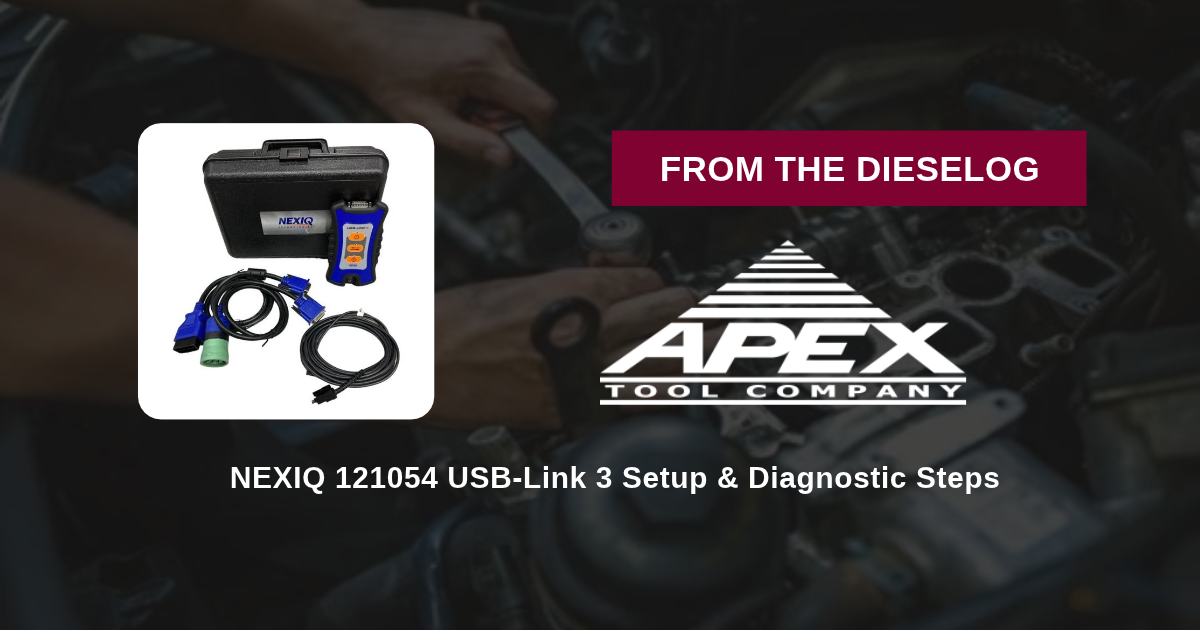
Connecting OEM diagnostic software to commercial trucks using the NEXIQ 121054 USB-Link 3 Wired Edition? Follow this step-by-step professional workshop procedure to install device drivers on Windows 10/11, select RP1210 device drivers in software, connect the latching USB cable, link to 9-pin or 16-pin vehicle diagnostic ports, and safely execute fault tracing and ECM recalibrations.

Why Hardwired USB VCIs are Critical During ECM Calibration & Parameter Updates
Heavy-duty commercial vehicle diagnostic and programming routines require absolute data stream stability. When technicians flash engine control modules (ECMs), transmission control units (TCUs), or anti-lock braking systems (ABS), thousands of code blocks are transferred sequentially over the vehicle's databus. If a Bluetooth or Wi-Fi signal drops due to shop signal congestion, low battery levels, or distance limitations, the write process halts mid-stream. This interruption corrupts the ECM bootloader, leaving the vehicle completely dead in the service bay. Utilizing the NEXIQ 121054 USB-Link 3 Wired Edition eliminates signal drop risks entirely. The hardwired USB 2.0 interface establishes a direct physical pipeline between the diagnostic laptop and the vehicle. The 15-foot latching USB cable locks firmly into the VCI housing, preventing accidental dislodgement if the cable is tugged. Designed for maximum reliability during field service, roadside repairs, or high-volume fleet maintenance, the wired 121054 guarantees fast data rates and flawless RP1210 communication across all heavy-duty OEM software packages.
The 5-Step NEXIQ 121054 VCI Setup & Diagnostic Protocol
- Install Drivers on Host Computer: Prior to connecting hardware, download and run the latest NEXIQ USB-Link 3 driver installer on your Windows 10 or 11 laptop. Restart the system to finalize RP1210 API setup.
- Connect Latching USB Cable to VCI & Laptop: Insert the 15-foot latching USB cable firmly into the NEXIQ 121054 VCI body until the lock clicks into place. Connect the standard USB-A end directly into an available USB 2.0 or 3.0 port on the diagnostic laptop.
- Attach Vehicle Adapter Cable (9-Pin or 16-Pin): Connect the 493128 9-Pin Deutsch cable (for standard Class 8 trucks) or 493113 16-Pin OBDII cable (for medium-duty/light-commercial vehicles) to the 26-pin DB connector on the VCI. Tighten thumbscrews securely.
- Plug into Vehicle Diagnostic Port & Turn Key ON: Plug the adapter cable into the vehicle's diagnostic connector. Turn the vehicle ignition key to the ON position (engine off for flashing, engine running for live diagnostics). Verify power and status LEDs on the VCI faceplate.
- Launch OEM Software & Select NEXIQ USB-Link 3: Open your preferred OEM diagnostic software (e.g., Cummins Insite, Detroit DDDL, CAT ET). In the connection settings menu, select "NEXIQ Technologies USB-Link 3" as the active RP1210 device and initiate vehicle connection.
PRO-TECH DRIVER PRE-INSTALLATION & BATTERY VOLTAGE MANDATE:
ALWAYS INSTALL DRIVERS BEFORE PLUGGING IN THE VCI! Plugging in the USB-Link 3 before driver installation can cause Windows to load generic drivers that corrupt RP1210 communication! ALWAYS MAINTAIN 12.5V+ VEHICLE BATTERY VOLTAGE during ECM recalibration to prevent voltage dips that abort flashing sessions!
5.00 lbs Ruggedized Wired Vehicle Communication Interface Kit. Protect Fleet Electronics.
Get the NEXIQ 121054 VCI Now
overall rating:
my rating:
log in to rate